

Live popup
A miniature live entry point that floats over your store pages. It appears on every page while you are broadcasting, and one tap takes customers into the room.
How it behaves
Section titled “How it behaves”All automatic. Nothing for you to manage:
- Any broadcast goes live → the pop-up appears.
- Every broadcast ends → the pop-up disappears.
- Some pages never show it. Checkout and account pages cannot host app embeds at all. Cart, password, gift card, and policy pages stay excluded by design. That keeps the pop-up away from customers who are paying.
While customers browse products, the pop-up pulls them into the room. That is the point of it: you are not waiting for them to go looking for your live shopping page.
Turn it on
Section titled “Turn it on”The pop-up ships off. Enable it once in your store theme. This is step 3 of the setup checklist.
Shopify
Section titled “Shopify”- Open your store theme editor → App embeds.
- Find the MaxxShow live pop-up and switch it on.
- Adjust the settings below as needed.
- Save the theme. It takes effect right away.
Go to the Theme Editor in the setup checklist jumps straight there. MaxxShow detects the change and ticks that step for you.
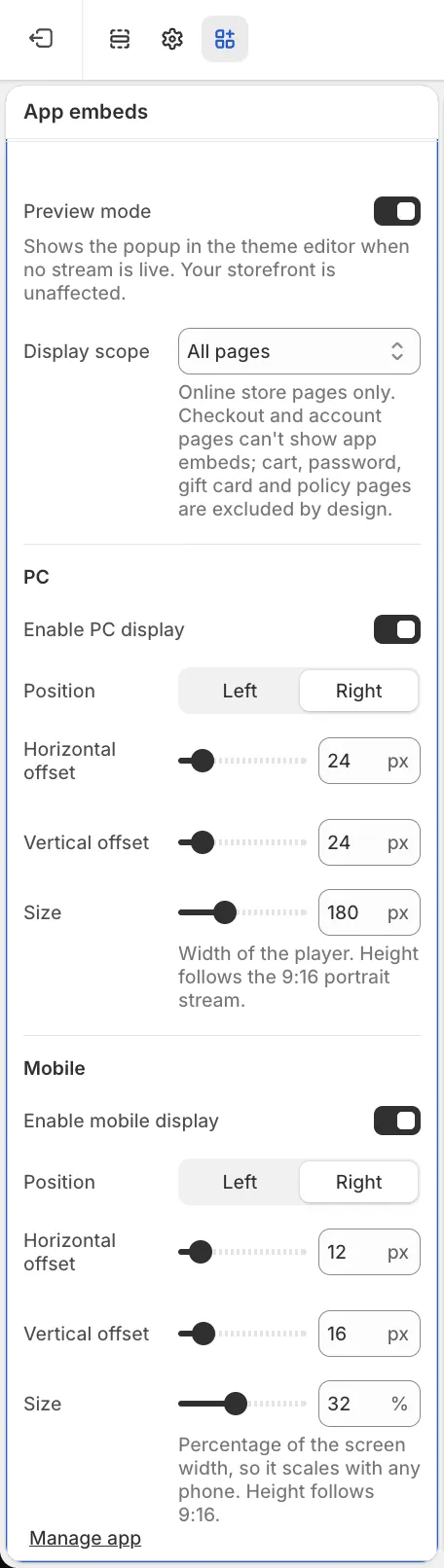
What you can adjust
Section titled “What you can adjust”- Preview mode — shows the pop-up in the theme editor even when nothing is live. It only affects the editor, never your storefront.
- Display scope — which pages the pop-up appears on.
- Separate PC and mobile control — each side switches on and off independently.
- Position and size — left or right, how far from the edge, and how large, configured separately per side. PC size goes in pixels, mobile size as a percentage of screen width, so it adapts across phones.
You do not set a height. It follows the 9:16 vertical frame.