

Live Events Block
The component that shows live events on your live shopping page. Customers find upcoming and currently running broadcasts here.
Add it to the page
Section titled “Add it to the page”MaxxShow creates the live shopping page, but you add the component once by hand. Store theme mechanics do not allow injecting it at install time. This is step 2 of the setup checklist.
Shopify
Section titled “Shopify”- Click Go to the Theme Editor on step 2 of the setup checklist. It lands you on the live shopping page.
- Add the Live Events Block to the page.
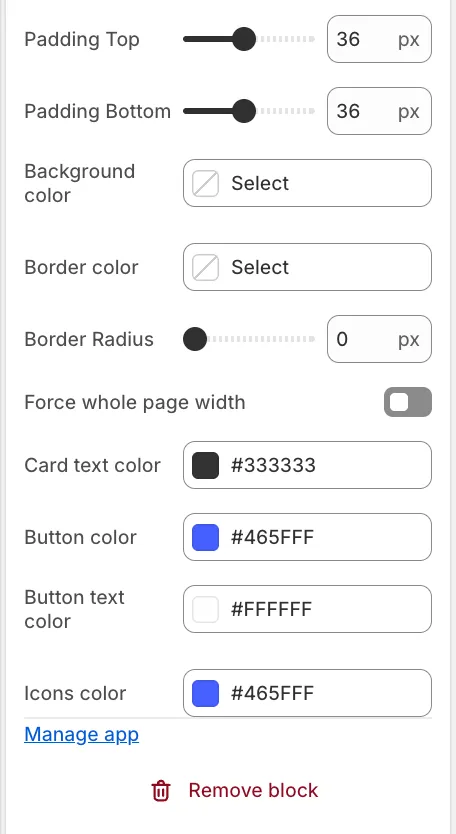
- Adjust the styling below as needed.
- Save the theme.
MaxxShow detects it and ticks that checklist step.
What customers see
Section titled “What customers see”The component shows events you have set to display, both upcoming and live. Events with display off never appear. See Reorder events and replays.
Every card carries a title, date and time, and description. Beyond that, cards change with state:
- Not started — the cover image plus a countdown, with a subscribe button at the bottom. Customers leave an email and hear when you go on air.
- Live now — the cover switches to the live feed with a live marker, and the button takes them into the room.
An event in testing looks the same to customers as one that has not started.
What you can adjust
Section titled “What you can adjust”The theme editor controls how the component looks:
- The block itself — Padding Top and Padding Bottom, Background color, Border color, Border Radius, and Force whole page width.
- Card contents — Card text color, Button color, Button text color, and Icons color.
Colors take hex values directly.