

Manage replays
Every broadcast turns into a replay, and they all collect on the replays page. It shows you the state of each one and is the way into every replay action.
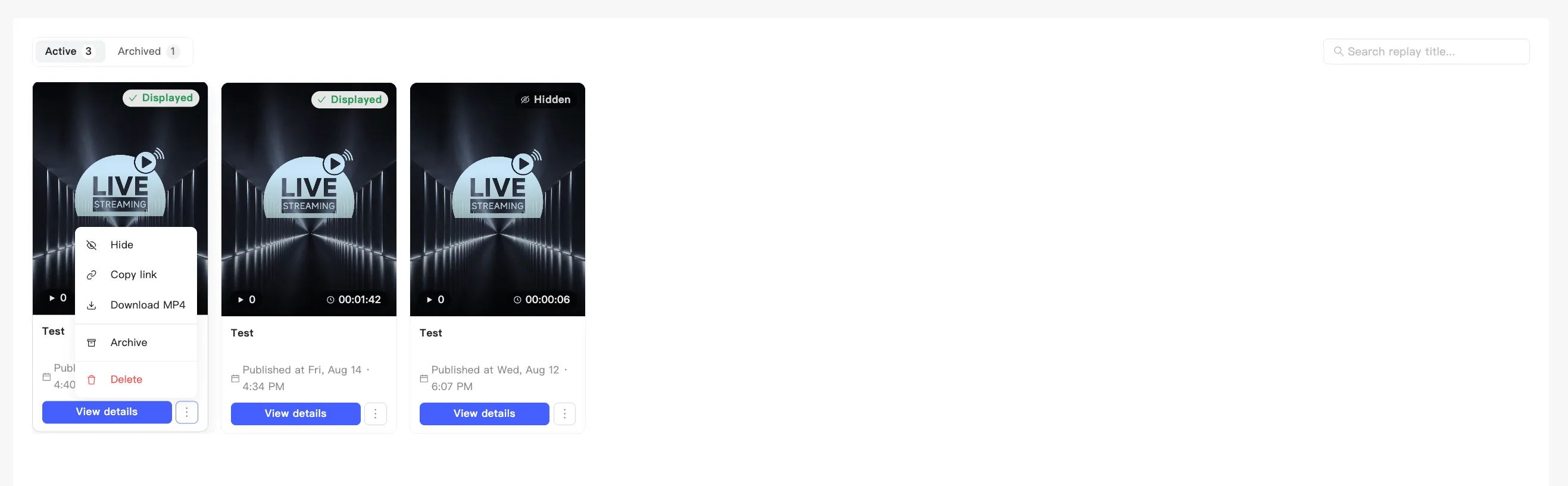
What a card shows
Section titled “What a card shows”A status badge sits at the top right of the cover, one of four:
| Badge | Meaning |
|---|---|
| Processing | Still transcoding, and not ready to work with |
| Displayed | Showing on your live shopping page |
| Hidden | Generated but not public |
| Archived | Archived, and not on the shopping page |
Along the bottom of the cover: views on the left, duration on the right. A transcoding replay has neither yet.
Below the cover sit the title and the Published at time. A transcoding one tells you it publishes itself when transcoding finishes.
What you can do from a card
Section titled “What you can do from a card”- View details — opens the replay detail page for its data, title and cover edits, and product chapters. The button greys out while the replay transcodes.
- The card menu — holds display, copy link, download, archive, and delete.
Which menu items you get depends on the replay’s state:
- Transcoding: archive and delete only.
- Archived: no option to turn display on, because an archived replay is off the shopping page by definition.
- Everything else: Hide or Show, Copy link, Download MP4, Archive, and Delete.
Two tabs
Section titled “Two tabs”- Active — your normal replays, with a count badge.
- Archived — where archived replays collect.
With no replays at all, the list shows No live replays.
With a lot of them, filter with Search replay title… at the top.