

Manage chat and pinned messages
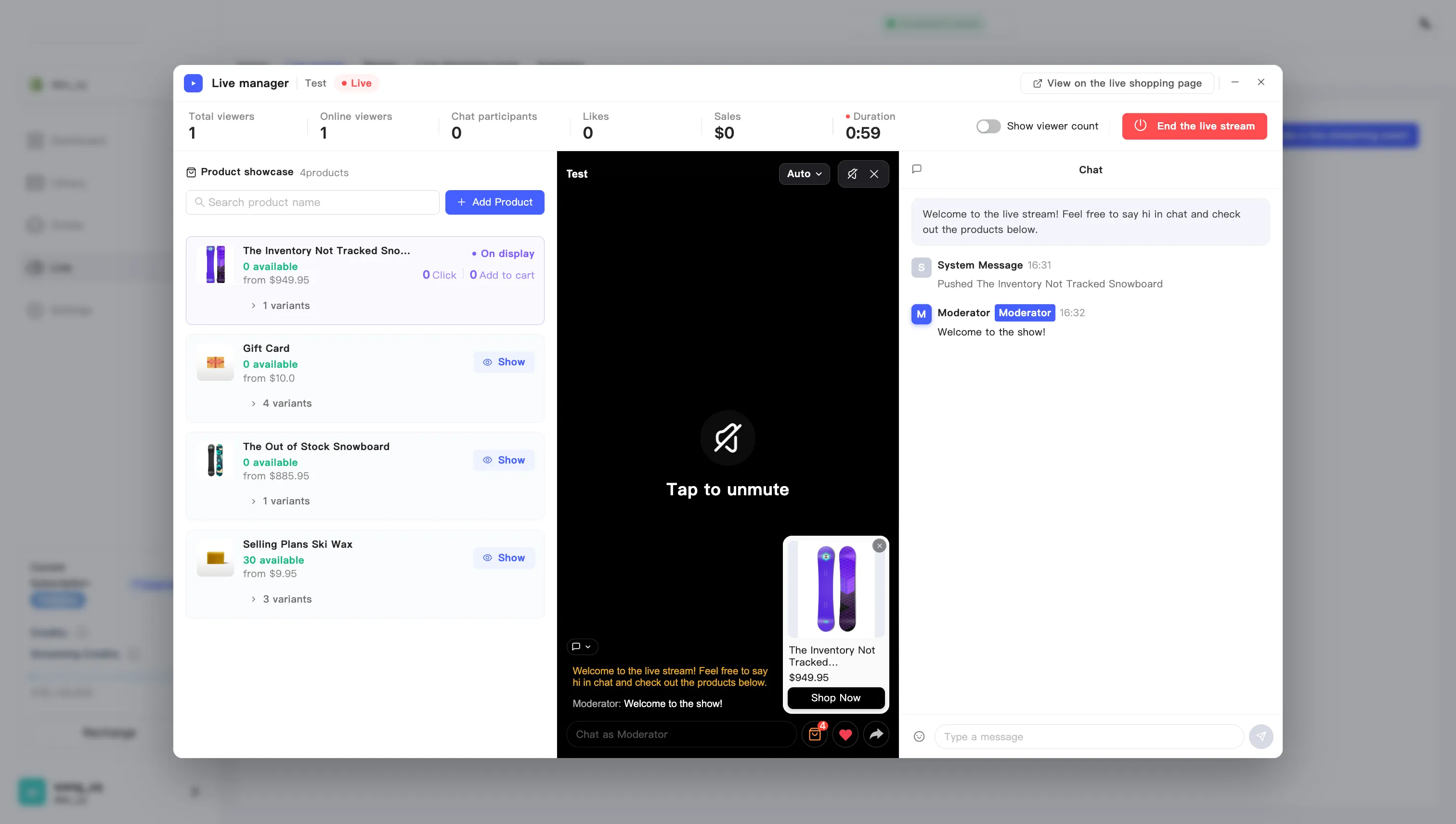
Chat sits on the right of the live manager. That is where you talk, answer viewers, pin announcements, and remove anything that does not belong.
Chat only appears while testing or live. A planned event shows the three preparation steps there instead. Once the broadcast ends, an end-of-session card takes its place.
Post a message
Section titled “Post a message”The input sits at the bottom of the chat column. Type and press Enter.
Your messages carry a badge so viewers can tell the host apart from the crowd. Set the badge text on the event editing page. See Set up chat and the welcome message.
Pin a message
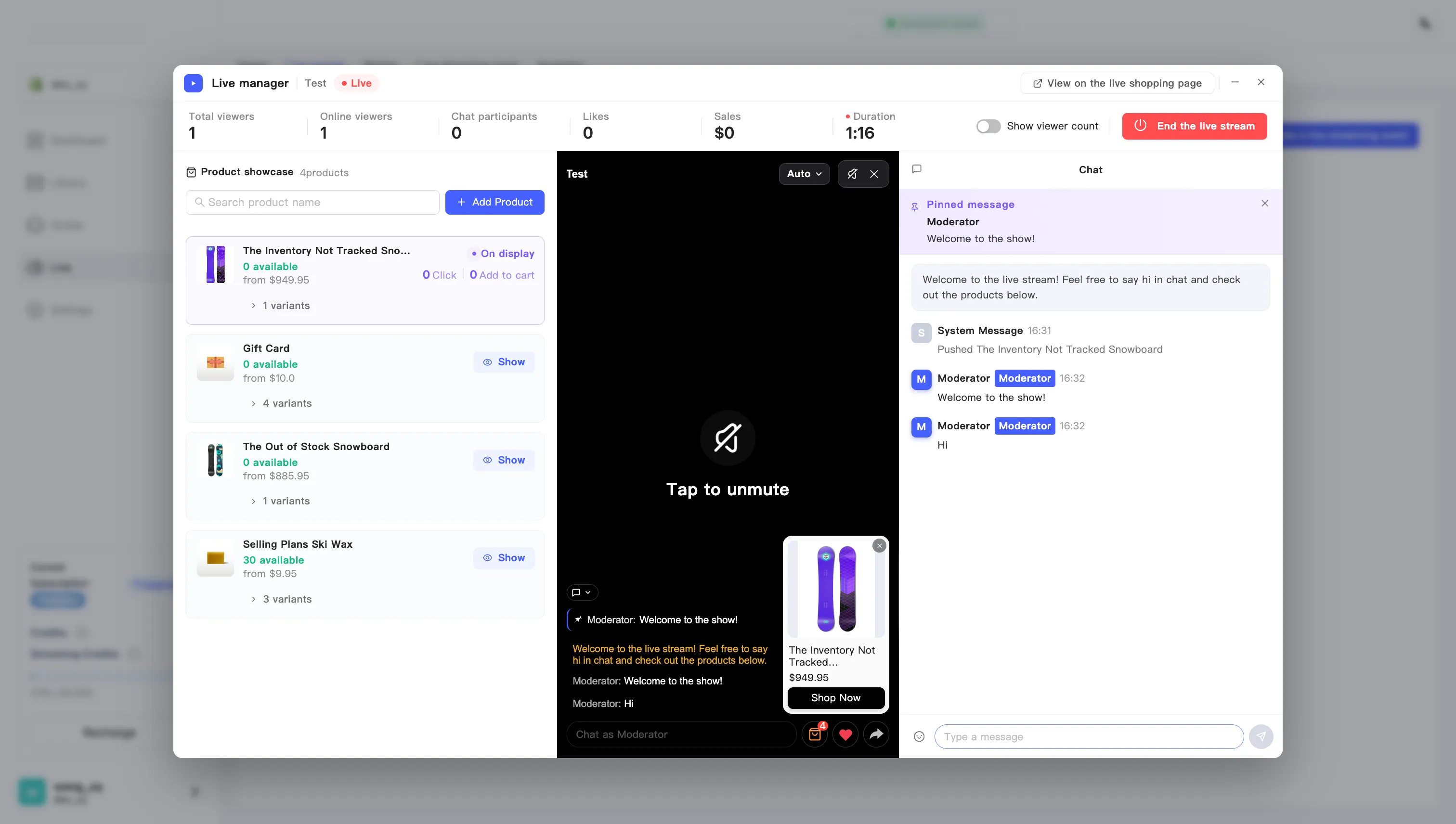
Section titled “Pin a message”Pinning holds something at the top of chat so anyone arriving late still sees it. Good for size charts, discount rules, or the product you are on.
- Hover a message. Three icons appear on the right.
- Click the pin icon. The message moves up into the Pinned message bar.
- To drop it, close the bar or click the pin icon on that message again.
Only one message can be pinned at a time. Pinning a new one pushes the old one out.
Reply to and delete viewer messages
Section titled “Reply to and delete viewer messages”The three hover icons are pin, reply, and delete:
- Reply — a reply target appears above the input, and your message goes out addressed to that viewer. Cancel it with the cross beside it.
- Delete — removes the message.