Edit a replay's title, description, and cover
A replay inherits the event’s title and cover. Those speak to people watching live. A replay hangs on your shopping page for months, so it earns its own version.
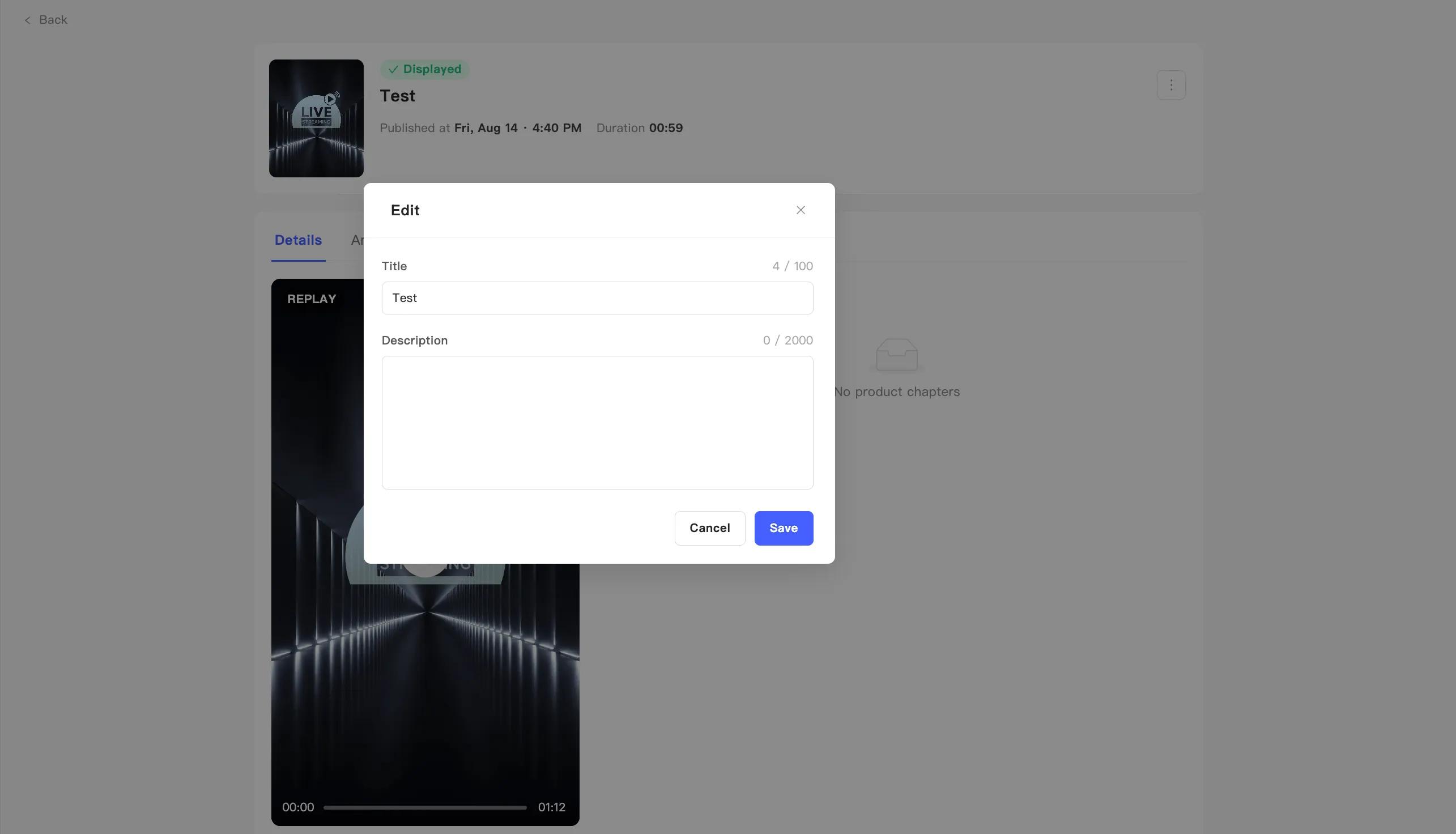
Edit the title and description
Section titled “Edit the title and description”- Open the replay detail page with View details on the card.
- Click edit.
- Change Title. Up to 100 characters.
- Change Description. Up to 2000 characters.
- Save.
Replace the cover
Section titled “Replace the cover”Click Change cover. The dialog offers two routes:
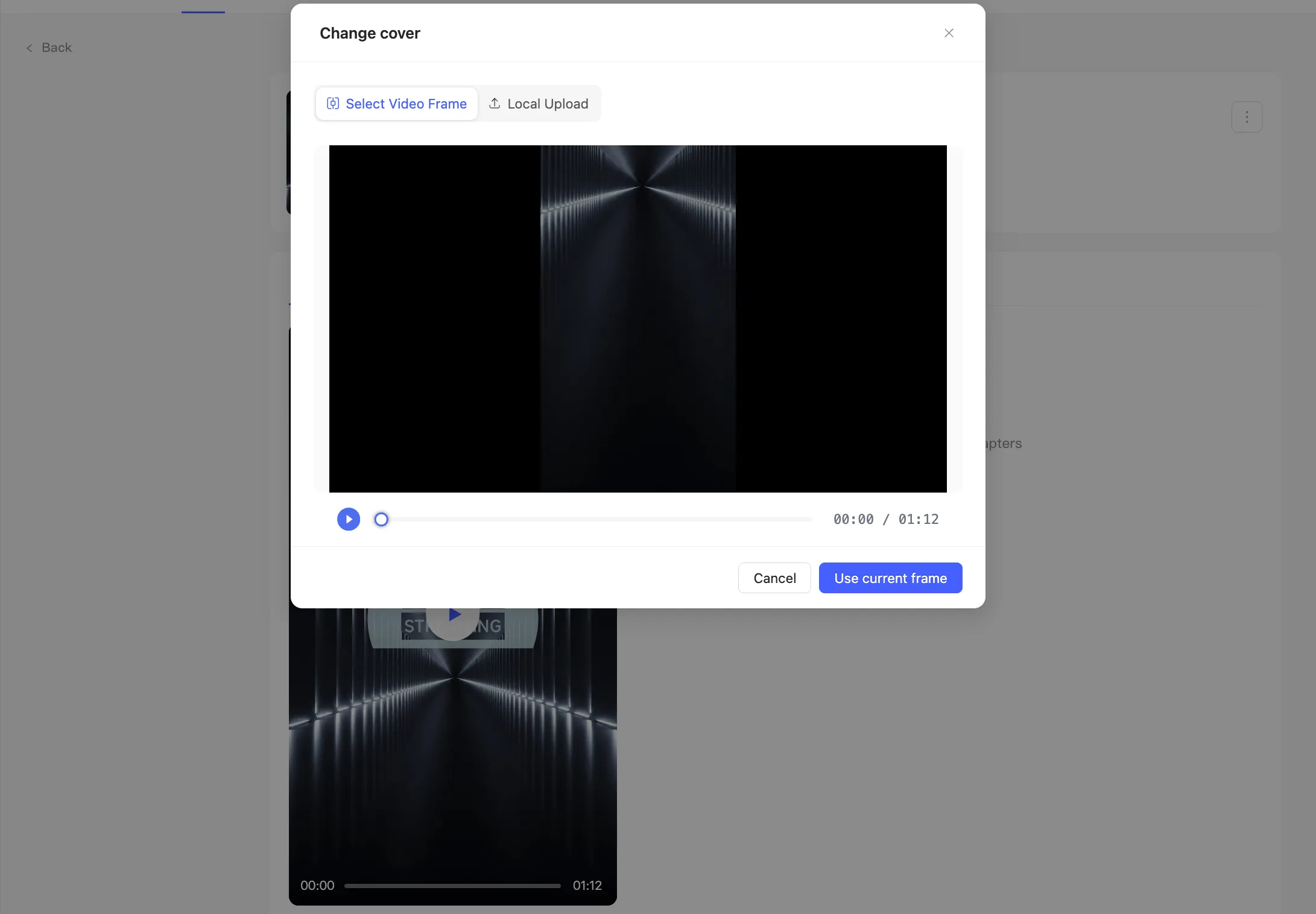
Select Video Frame
Section titled “Select Video Frame”Pick a frame from the replay itself. Drag the scrubber to the shot you want, or hit play to preview. Confirm with Use current frame.
Local Upload
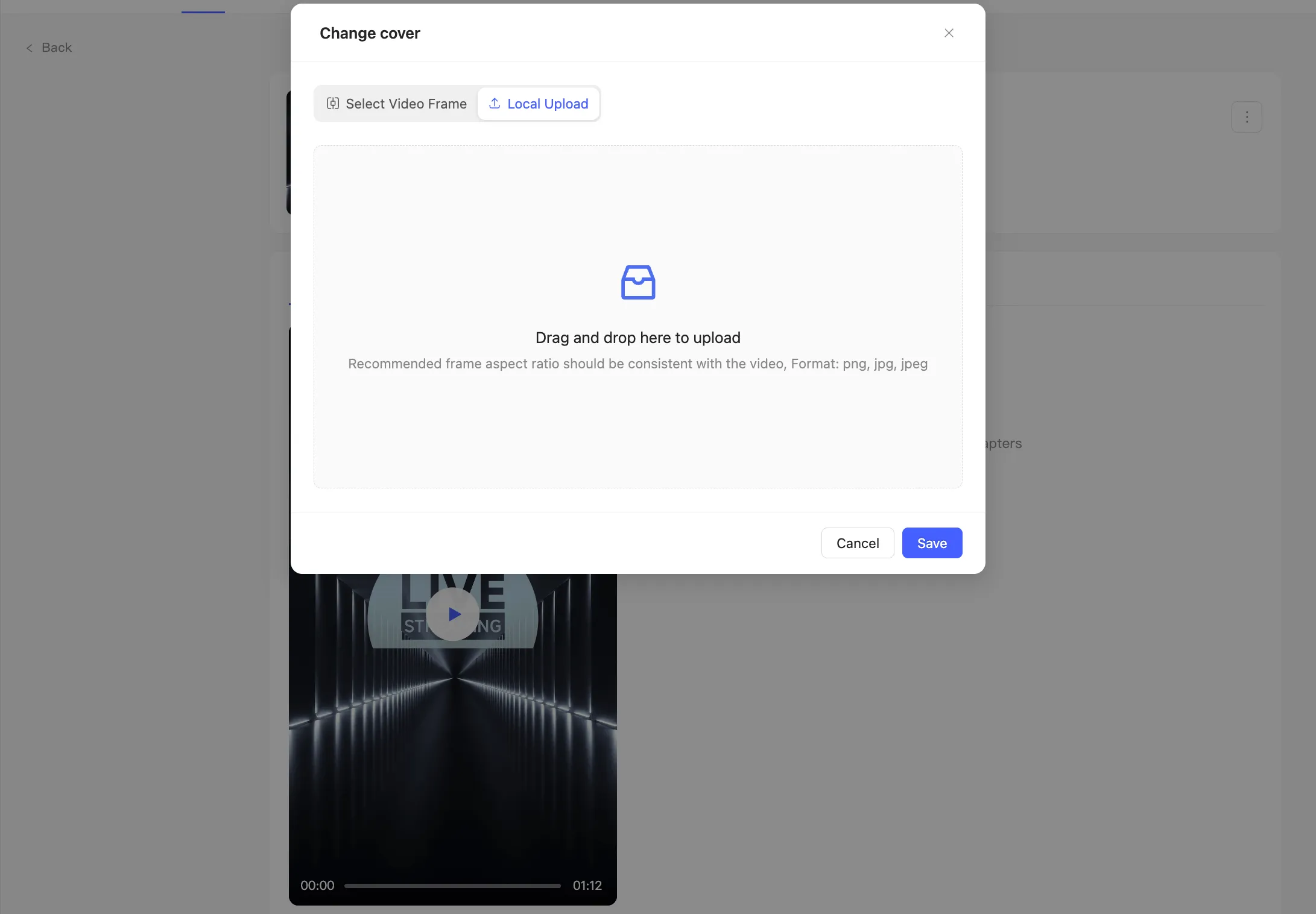
Section titled “Local Upload”Click or drag an image into the upload area. What it takes:
- An aspect ratio matching the video
- PNG, JPG, or JPEG