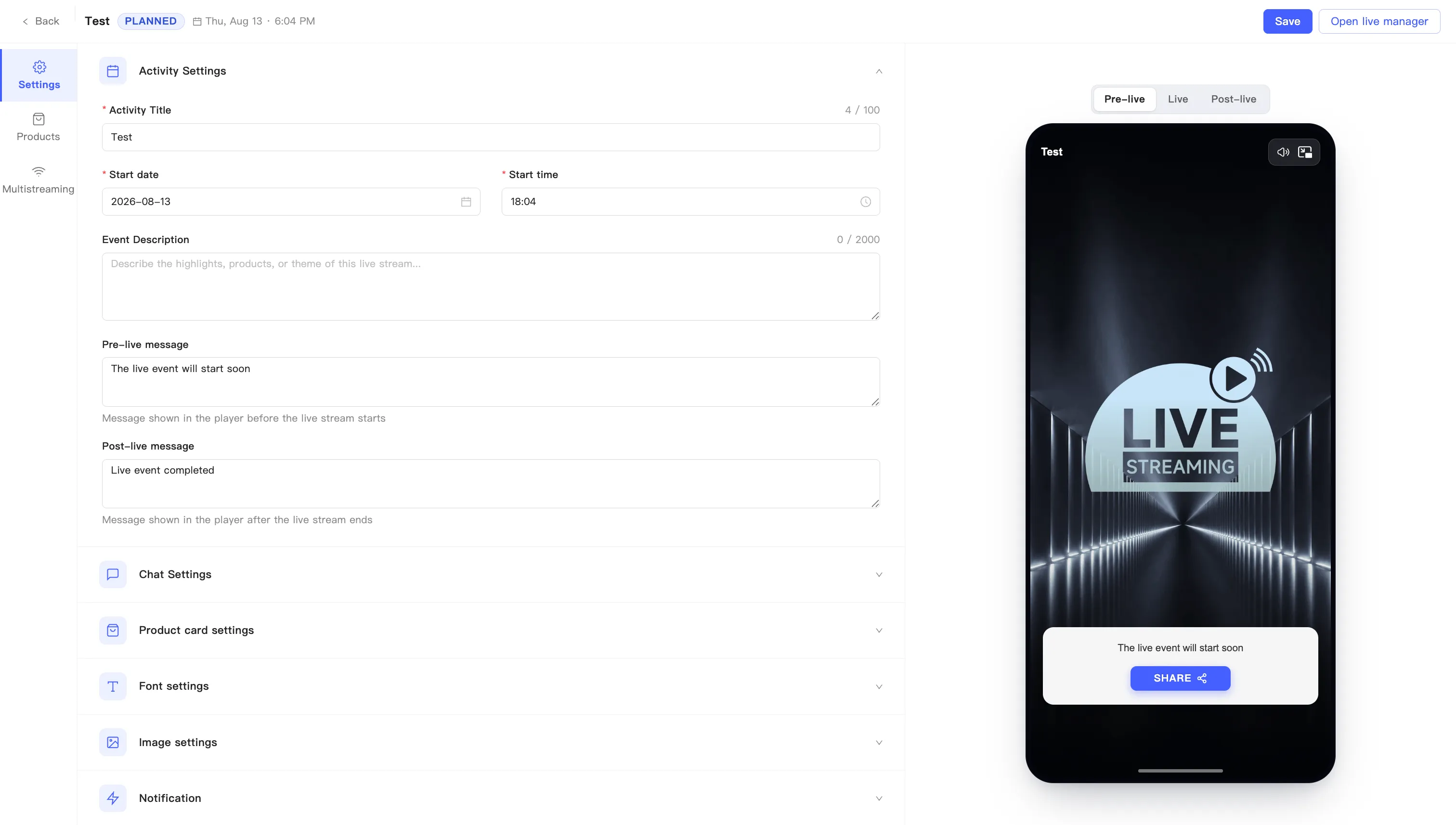
Edit activity settings
Once an event exists, change its basics on the editing page. Activity Settings is the first group under the Settings tab, and it is already open.
-
Find the event on the events page and click Edit.
-
The editing page opens on the Settings tab with Activity Settings expanded.
-
Change the fields you need:
Field Notes Activity Title Required Start date Required Start time Required Event Description Up to 2000 characters Pre-live message The prompt shown inside the player before you go on air Post-live message The prompt shown inside the player once the broadcast ends -
Click Save at the top right. A confirmation appears when it lands.
Required fields block the save
Section titled “Required fields block the save”Saving checks four required fields: Activity Title, Start date, Start time, and Moderator label. If any are empty, a message reads Complete all required fields: and names them.
The check covers the whole Settings tab, not the group you happen to have open. Moderator label lives under Chat Settings. See Set up chat and the welcome message. Leave it empty and you cannot save your activity settings either.
Leaving with unsaved changes prompts you
Section titled “Leaving with unsaved changes prompts you”Click Back with unsaved edits and a dialog asks whether to save first:
You have unsaved content. Would you like to save it?
Save and return saves, then takes you back to the events list. Do not save discards the changes.
Opening the live manager from the editing page hits the same check, with the confirm button reading Save and open live manager.