Change fonts, logo, and cover images
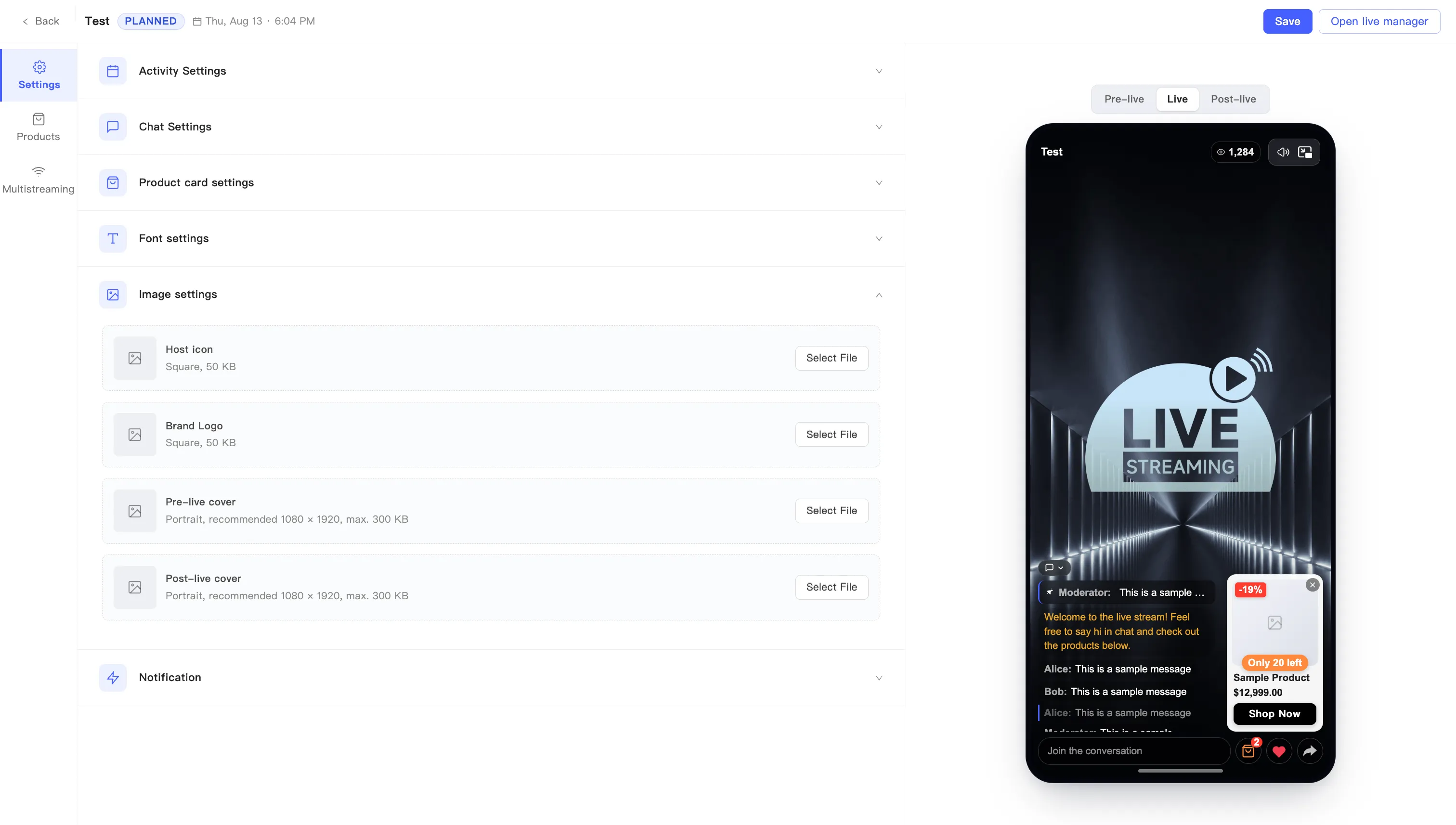
Font settings and Image settings on the editing page control how the live room looks. The first sets the player font. The second sets the host avatar, brand logo, and the covers viewers see before and after the broadcast.
Font settings
Section titled “Font settings”One field, Primary font, which applies one font style to all text in the player.
Pick from the dropdown. The list is long and covers the usual western faces, including Arial, Helvetica, and Georgia.
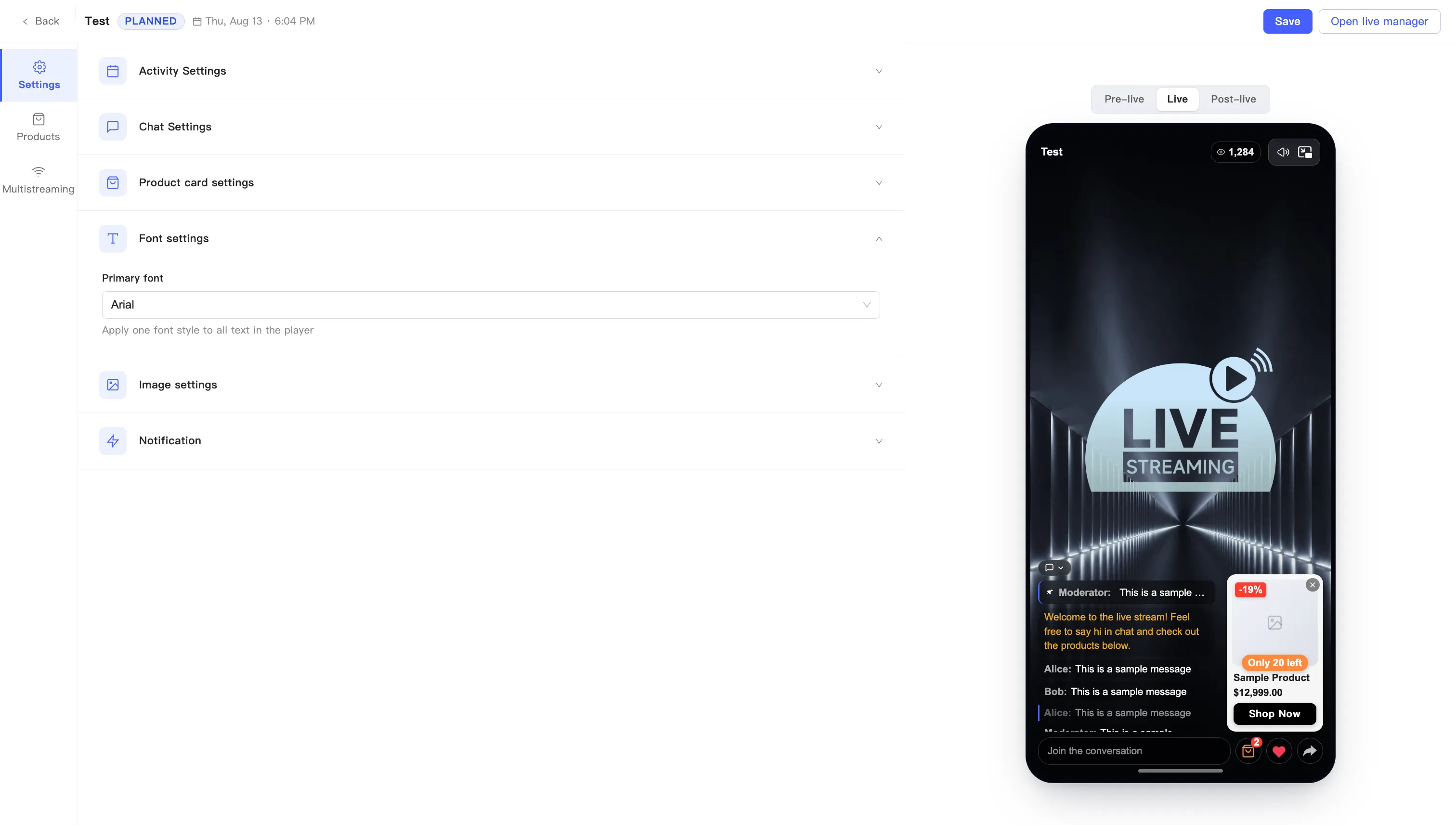
Image settings
Section titled “Image settings”Four images, each with its own Select File button.
| Image | Requirement | Where it shows |
|---|---|---|
| Host icon | Square, 50 KB | Next to the host’s messages in chat |
| Brand Logo | Square, 50 KB | Your brand mark inside the live room |
| Pre-live cover | Portrait, 1080 × 1920 recommended, max. 300 KB | What viewers see before you go on air |
| Post-live cover | Portrait, 1080 × 1920 recommended, max. 300 KB | What viewers see once the broadcast ends |
Click Save at the top right when you are done.