

Go live
Once the test looks right, open the broadcast to your audience. This step does not reverse. Going public means no going back to testing.
-
In the live manager, click Go live.
-
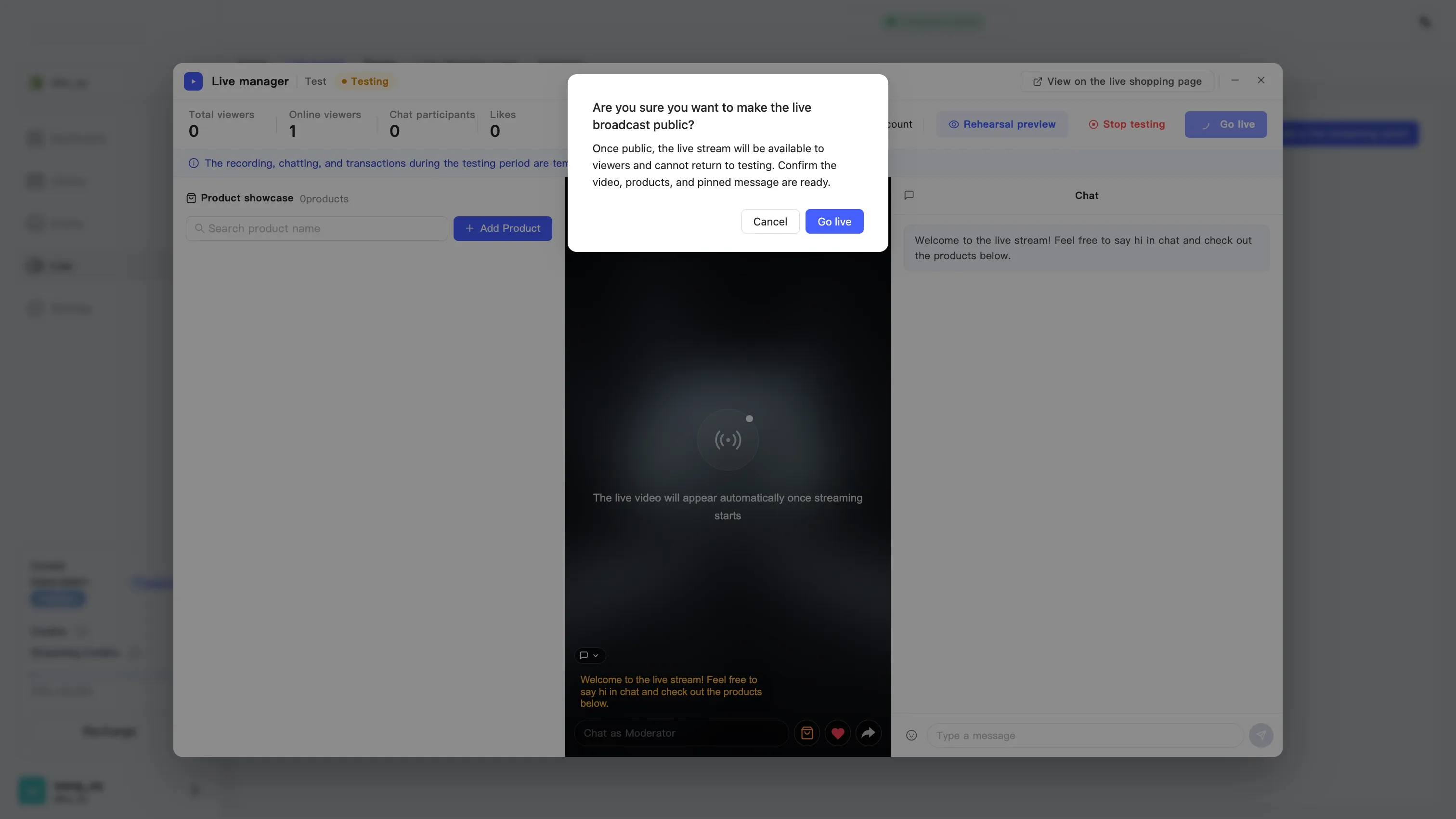
A dialog appears: Are you sure you want to make the live broadcast public? Read what it says:
Once public, the live stream will be available to viewers and cannot return to testing. Confirm the video, products, and pinned message are ready.
-
Click Go live in the dialog to go on air, or Cancel to keep checking.
-
The event moves from Testing to live, and viewers can join.
What to confirm before you go public
Section titled “What to confirm before you go public”The dialog names three things. Each one costs you to fix after the fact:
- Video — the stream is stable, and framing and audio are right.
- Products — everything this broadcast sells is in the product panel.
- Pinned message — pin whatever announcement viewers should see first. See Manage chat and pinned messages.
While you are live
Section titled “While you are live”The top bar tracks this session as it runs: Total viewers, Online viewers, Chat participants, Likes, Sales, and Duration.
What you will reach for:
- Push a product — see Push products during a live
- Chat and pinning — see Manage chat and pinned messages
- Show viewer count — a toggle at the top that controls whether viewers see the audience count
End the broadcast
Section titled “End the broadcast”-
Click End the live stream at the top right.
-
End this live stream? appears:
Streaming will stop immediately, viewers will see the end message, and a replay will be generated. This action cannot be undone.
-
Click End live stream. The manager confirms with Live stream ended. Generating replay…
For what comes next, see After the stream ends.